
Guides
Admin account recovery and 2FA
By the end of this page you can get an admin account back from the server's command line when you forget the password or lose the authenticator app, and you can keep the admin UI from being opened freely from outside.
Before you start
- Recovery needs shell access to the server NPG runs on. A locked account cannot be unlocked from the admin UI alone.
- Run the commands in the install directory, where
docker-compose.ymlis.
Resetting a password
# Auto-target the sole admin and print a freshly generated random password
docker compose exec api ./server reset-password

# Pick a specific user
docker compose exec api ./server reset-password --username alice

# Set a known password instead of the auto-generated one (≥ 8 chars, ≤ 72 bytes)
docker compose exec api ./server reset-password --username alice --password 'S3cure-Pwd!'

# Also wipe the user's TOTP secret and disable 2FA
docker compose exec api ./server reset-password --clear-2fa
Without --username, the command picks the account only when exactly one account has the admin role. With several admins it changes nothing and only lists the candidates, so run it again with --username.
A successful reset does all of this at once:
- The new password is stored. Without
--password, a random 16-character password is printed. - The account's failed sign-in records are cleared, which lifts a login lockout.
- Every sign-in session of the account is ended. Anyone else holding a session token must sign in again too.
- A
Password reset via CLIentry is written to Logs → System Logs.
Sign in with the printed password and change it straight away under My Account → Password.
Turning on two-factor authentication
- Open My Account from the account menu at the top right and go to the Two-Factor Auth tab.
- Click Enable 2FA and scan the QR code with an authenticator app (Google Authenticator, Authy and so on). If you cannot scan it, enter the secret shown instead.
- Enter the 6-digit code from the app and click Verify & Enable.
- Store the backup codes shown somewhere safe. There are 10 of them; when the authenticator app is not available, an 8-character backup code works on the sign-in screen in place of the 6-digit code.
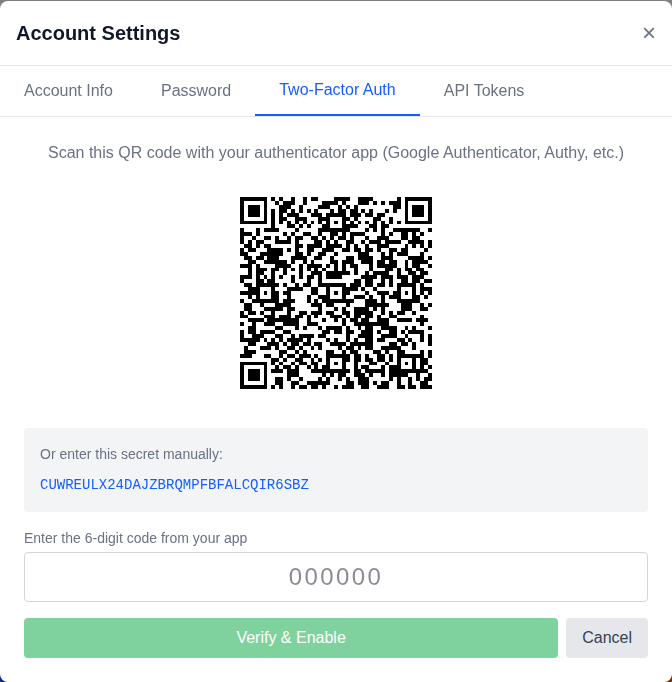
To turn two-factor authentication off, enter your password and a current code (or a backup code) on the same tab and click Disable 2FA.
Lost the two-factor device
-
With a backup code: sign in using the backup code at the two-factor step, then turn two-factor authentication off and on again.
-
Without backup codes: reset it on the server with
--clear-2fa. This also changes the password.docker compose exec api ./server reset-password --username alice --clear-2fa
Login lockout
Five failed sign-ins within 15 minutes for the same username from the same IP lock that combination out. It lifts after 15 minutes, or immediately when reset-password runs. Separately, sign-in requests have a per-IP limit per minute (AUTH_RATE_LIMIT_PER_MINUTE, default 100).
Right after installation
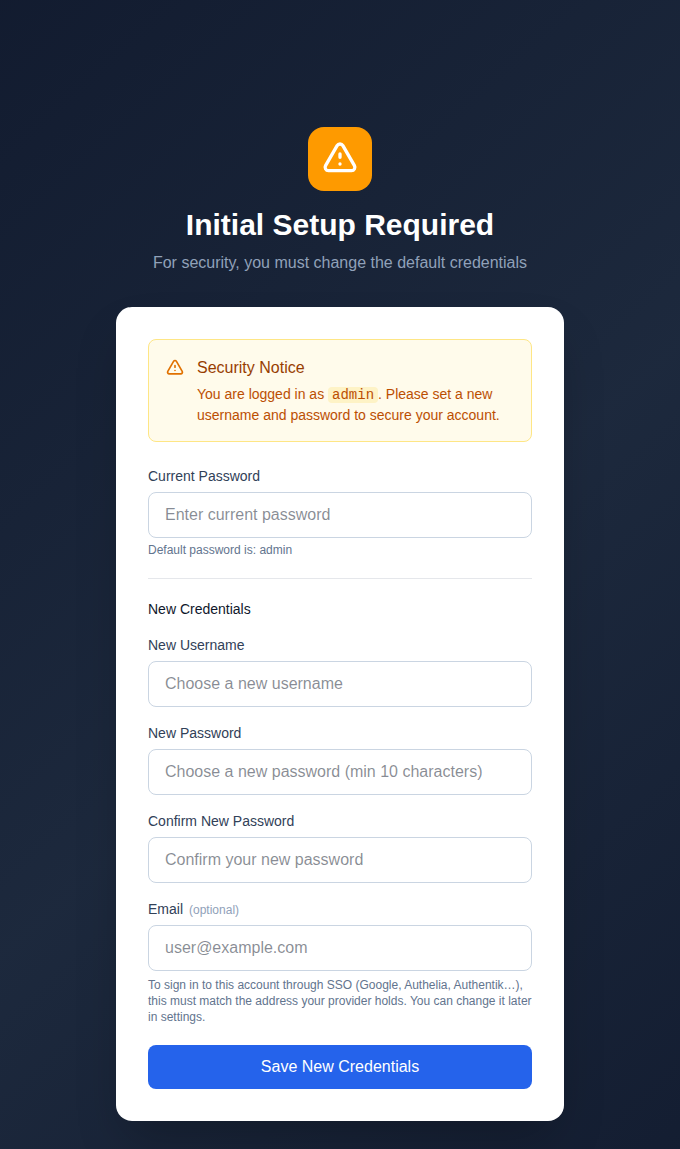
A new NPG refuses every other API request until you sign in with admin/admin and change the username and password on the Initial Setup Required screen. This keeps anyone else from taking over a freshly installed instance first. Even so, do not open the admin UI port to the outside before the initial setup is done.
Keeping the admin UI off the internet
It is recommended not to expose the admin UI (port 81 by default) to the internet directly.
-
Reach it only from your LAN or a VPN. Do not forward port 81 on your router.
-
Open it only on a specific address. The
uiservice's port indocker-compose.ymlcan be bound to one address of the server. Bound to loopback, for example, port 81 cannot be reached from outside the server, and the UI opens only through an NPG proxy host (127.0.0.1:81).services: ui: ports: - "127.0.0.1:${UI_PORT:-81}:443" -
If it must be on a domain, create a proxy host for the admin UI (Connecting Docker containers), restrict it to allowed IPs with an access list, and turn on two-factor authentication for every admin account. Password sign-in cannot be turned off even with SSO, so passwords and two-factor authentication still need looking after.
Check that it works
- You can sign in with the reset password.
- Logs → System Logs has the
Password reset via CLIentry. - An account with two-factor authentication on asks for the 6-digit code at sign-in.
Common problems
reset-passwordonly lists candidate names and stops. There are several admin accounts. Run it again with--username.- The password given with
--passwordis refused. It must be at least 8 characters and at most 72 bytes. - The authenticator app's codes are always rejected. If the server's clock and the phone's clock differ by more than 30 seconds, valid codes are refused. Check the server's time synchronisation (NTP).
- Sign-in is refused although the password is right. The login lockout above (5 failures in 15 minutes) or the per-IP sign-in request limit may apply. Wait 15 minutes, or lift the lockout with
reset-password.