
Guides
Connecting Docker containers
By the end of this page you can pick a Docker container on the same server as a proxy host's target, and NPG follows the container's new IP when it is recreated. It also covers serving the NPG admin UI itself on a domain.
How NPG reaches containers
NPG's nginx container (npg-proxy) runs in host network mode. It is not on the same Docker network as other containers; like the server itself, it connects to a container's bridge network IP directly.
- You do not need to publish the container's ports (
ports:) on the server. - Container names do not work. Docker's internal DNS only answers containers on the same network. Do not type a container name into Forward Host; use the container picker below.
127.0.0.1in Forward Host means the server (the Docker host). A container that publishes a port on the server, or one that runs in host network mode, can be reached at127.0.0.1and that port.
Before you start
- The container is running and has an IP on a bridge network (the default
bridgeor one you created). - The NPG API container can read the Docker socket (
/var/run/docker.sock). The stockdocker-compose.ymlmounts it.
Pick a container as the target
- Create or open a host under Proxy Hosts.
- On the Basic tab, click the Docker button next to Forward Host.
- Find the container in the Select Docker Container window. Each container shows its image, network, IP and ports.
- If the container is on several networks, choose one under Select Network, choose the service port under Select Port, and click Select.
- Forward Host and Forward Port are filled in, and below them the linked container is shown, for example "Docker container: app (network: bridge, auto-resolved)".
- Choose the Forward Scheme the service needs and save.
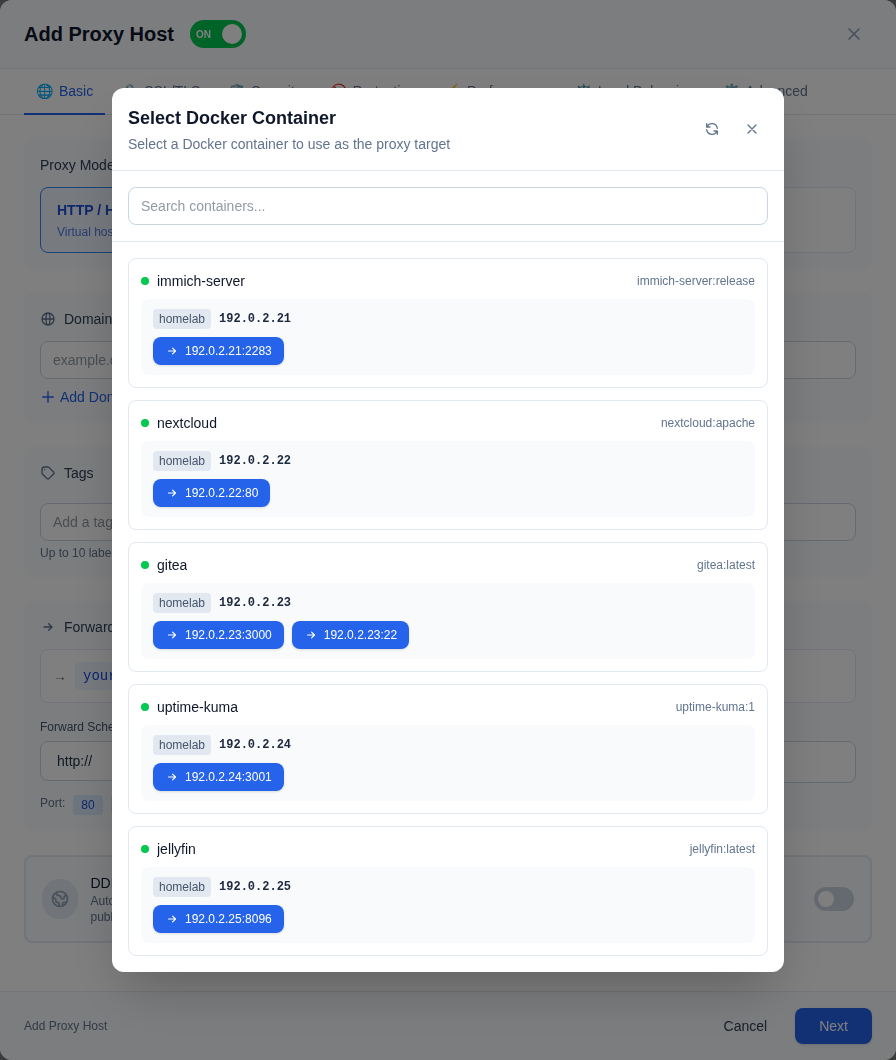
NPG re-checks the container's IP every 30 seconds. When the container is recreated with a new IP, NPG regenerates and applies the configuration with the new IP on the network you chose. Only that network is considered, so the target never jumps to an IP on another network.
Editing the Forward Host field by hand unbinds the container, and from then on the IP is no longer updated automatically.
Serving the NPG admin UI on a domain
The admin UI (npg-ui) can be served through a proxy host as well. It only answers HTTPS, so Forward Scheme must be https://.
- Pick
npg-uiin the picker and use port443, or - use Forward Host
127.0.0.1and Forward Port81(or yourUI_PORT).
The admin UI uses a self-signed certificate, but NPG does not verify backend certificates, so it connects as is.
Check that it works
- The host's backend status in the Proxy Hosts list is
Backend online. - The domain opens in a browser.
- Recreate the container (
docker compose up -d --force-recreateor similar), wait about a minute and open the domain again. If the IP changed,docker logs npg-apihas a line starting with[ContainerReconcile]recording it.
Common problems
- The picker list is empty. Only running containers with an IP on a bridge network are listed. Containers in host network mode have no such IP and do not appear; connect to them at
127.0.0.1and their port. Where the Docker API version is not detected, as on some Synology systems, setDOCKER_API_VERSIONin.envand restart. - Your container is missing from the list. Containers whose names start with
npg-ornpg_are treated as NPG's own components and hidden (npg-uiis the exception). Rename the container. - Proxying the admin UI loops redirects. Forward Scheme is
http://. The admin UI redirects HTTP requests to HTTPS, so change it tohttps://. - 502 after the container restarts. Check that the host was set up with the picker. If an IP was typed into Forward Host, it is not updated. Pick the container again.
- Picked with the picker, but the IP is not updated. Check the
[ContainerReconcile]lines indocker logs npg-api. A warning about a missing network means an old setting: pick the container once more in the picker and save.