
Guides
When a certificate won't issue
By the end of this page you can find in the logs why a certificate failed to issue and fix it for the validation method you use. It also covers uploading a certificate obtained outside NPG. The order of steps for a first certificate is in Turning on HTTPS.
Before you start
The requirements depend on the validation method.
| HTTP-01 | DNS-01 | |
|---|---|---|
| How it validates | Let's Encrypt fetches http://<domain>/.well-known/acme-challenge/.... | NPG creates an _acme-challenge TXT record through the DNS provider's API. |
| What it needs | The domain points at this server's public IP and NPG is reachable from the internet on port 80. | API credentials for the DNS provider |
| Wildcards | No | Yes |
The /.well-known/acme-challenge/ path is not subject to NPG's country blocking, bot filter, cloud provider blocking or Block Exploits. Those settings do not make HTTP-01 fail.
1. Find the cause
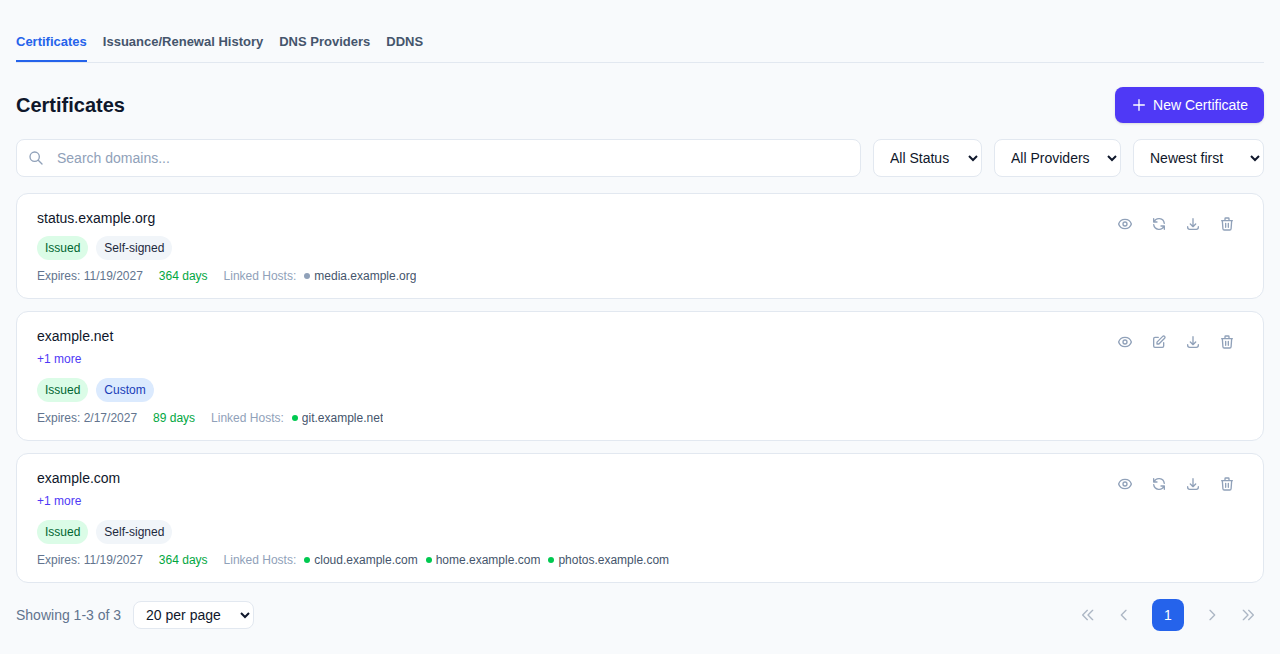
- In the Certificates → Certificates list, find the certificate whose status is Error or Renewal Failed.
- Under Certificates → Issuance/Renewal History, click View Logs on the entry to see the operation log and the error message.
2. Fix it by cause
HTTP-01
- The domain does not point at this server. Check that the domain's A record is this server's public IP. If there is an AAAA (IPv6) record, Let's Encrypt tries the IPv6 address, so the server must be reachable over IPv6 too.
- Port 80 is closed. Your router must forward external port 80 to the server. If you changed
NGINX_HTTP_PORT, forward external 80 to that port. - You only use Cloudflare Tunnel. The domain does not point at this server's port 80, so issue with DNS-01. When traffic goes through the Cloudflare proxy (orange cloud), DNS-01 also issues regardless of the port 80 path. (Running behind Cloudflare)
- You included a wildcard. HTTP-01 cannot issue wildcards. Use DNS-01.
DNS-01
- Missing permissions. A Cloudflare API token needs both
Zone:DNS:EditandZone:Read. Open the provider under Certificates → DNS Providers and check it with Test Connection. - The zone is not found. Domains under a two-level top-level domain such as
.ai.kr,.pe.kror.co.ukcan be matched to the wrong zone. Put the domain's Zone ID in the Cloudflare provider's Zone ID field. - Propagation timeout. After creating the TXT record, NPG asks the domain's authoritative name servers directly whether the record is visible. If some of them do not answer, or the server's firewall blocks outgoing DNS (port 53), it fails at this step. For Dynu, NPG waits up to 10 minutes per domain for the record to show.
- The provider cannot be selected. An Infomaniak (DynDNS) provider is for DDNS only and cannot be used for DNS-01 certificates.
- Your DNS is not on the supported list. Obtain the certificate outside NPG and upload it. See "Uploading your own certificate" below.
Either method
- You hit Let's Encrypt's rate limits. Retrying issuance for the same domain many times can hit them. While testing, turn on Use Staging Server (Test) under Settings → SSL / ACME. Browsers do not trust staging certificates, so turn it off and issue again when you are done.
- ACME is off. Check that Enable ACME / Let's Encrypt is on under Settings → SSL / ACME. Test ACME Settings checks the configuration.
Changing the key type
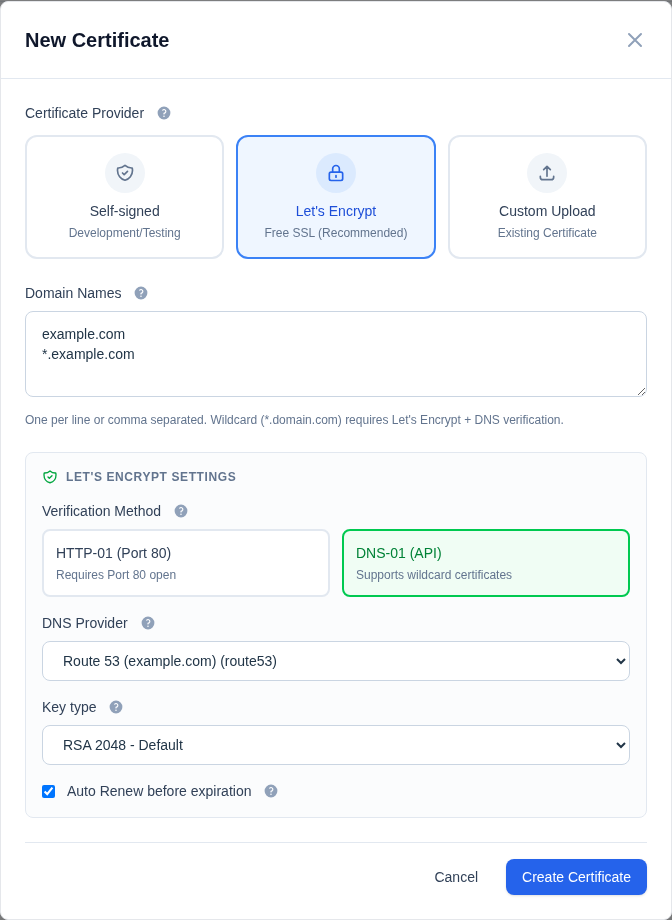
A new Let's Encrypt certificate can use RSA 2048 (the default), ECDSA P-256 or ECDSA P-384 under Key type, and renewals keep the same key type. An existing certificate's key type does not change. To move to ECDSA, create a new certificate for the same domains and switch the host to it on its SSL/TLS tab.
Uploading your own certificate
You can use a certificate issued elsewhere (for example a Cloudflare Origin certificate, or one from acme.sh).
- Under Certificates → Certificates, click New Certificate and choose Custom Upload as the Certificate Provider.
- Paste the Certificate (PEM) and Private Key (PEM). If a chain is needed, put the intermediate certificate in Issuer Certificate (PEM, Optional).
- Save, then pick it on the host's SSL/TLS tab with Use Existing Certificate.
When you get a new certificate, use Update in the list to replace only its contents. The certificate ID stays the same, so the hosts that use it need no changes, and the nginx configuration is applied again straight away. NPG does not renew uploaded certificates, so replace them before they expire.
Replacing through the API
To replace the certificate automatically whenever an external tool renews it, use the API.
- Under My Account → API Tokens, create a token with the Certificates (Read) and Certificates (Write) permissions (
certificate:read,certificate:write). - Upload once with
POST /api/v1/certificates/uploadand note theidin the response. - On each renewal, replace it with
PUT /api/v1/certificates/{id}/upload.
#!/bin/sh
NPG=https://npg.example.com      # NPG admin UI address
TOKEN=ng_xxxxxxxx                # API token
CERT_ID=xxxxxxxx                 # id from the first upload
DIR=/root/.acme.sh/example.com   # certificate folder

jq -n --rawfile c "$DIR/fullchain.cer" --rawfile k "$DIR/example.com.key" \
  '{certificate_pem: $c, private_key_pem: $k}' |
curl -fsS -X PUT "$NPG/api/v1/certificates/$CERT_ID/upload" \
  -H "Authorization: Bearer $TOKEN" -H "Content-Type: application/json" \
  --data-binary @-
The full API is in the API page and at /api/docs on the admin UI.
Check that it works
- The certificate status is Issued and Expires shows the new date.
- Open the
https://address in a browser and look at the certificate details.
Keeping renewals from failing
- Automatic renewal is on by default and starts 30 days before expiry. Change the day count in Renew Before (Days) under Settings → SSL / ACME.
- Turn on Certificate renewal failed in Notifications to hear about a failed renewal right away.