
Getting started
Your first proxy host
By the end of this page, requests for app.example.com are forwarded to an internal service (for example 192.0.2.10:8080). HTTPS comes in the next page, Turning on HTTPS.
Before you start
- NPG is installed and you can sign in to the admin UI. (Installation)
- The domain's A record (AAAA for IPv6) points at the server's public IP. If your public IP changes often, use DDNS as well.
- Your router forwards external ports 80 and 443 to the NPG server.
- You know the address and port of the service. If it is a Docker container on the same server, also read Connecting Docker containers.
Create the proxy host
-
Open Proxy Hosts in the top menu and click Add Proxy Host.
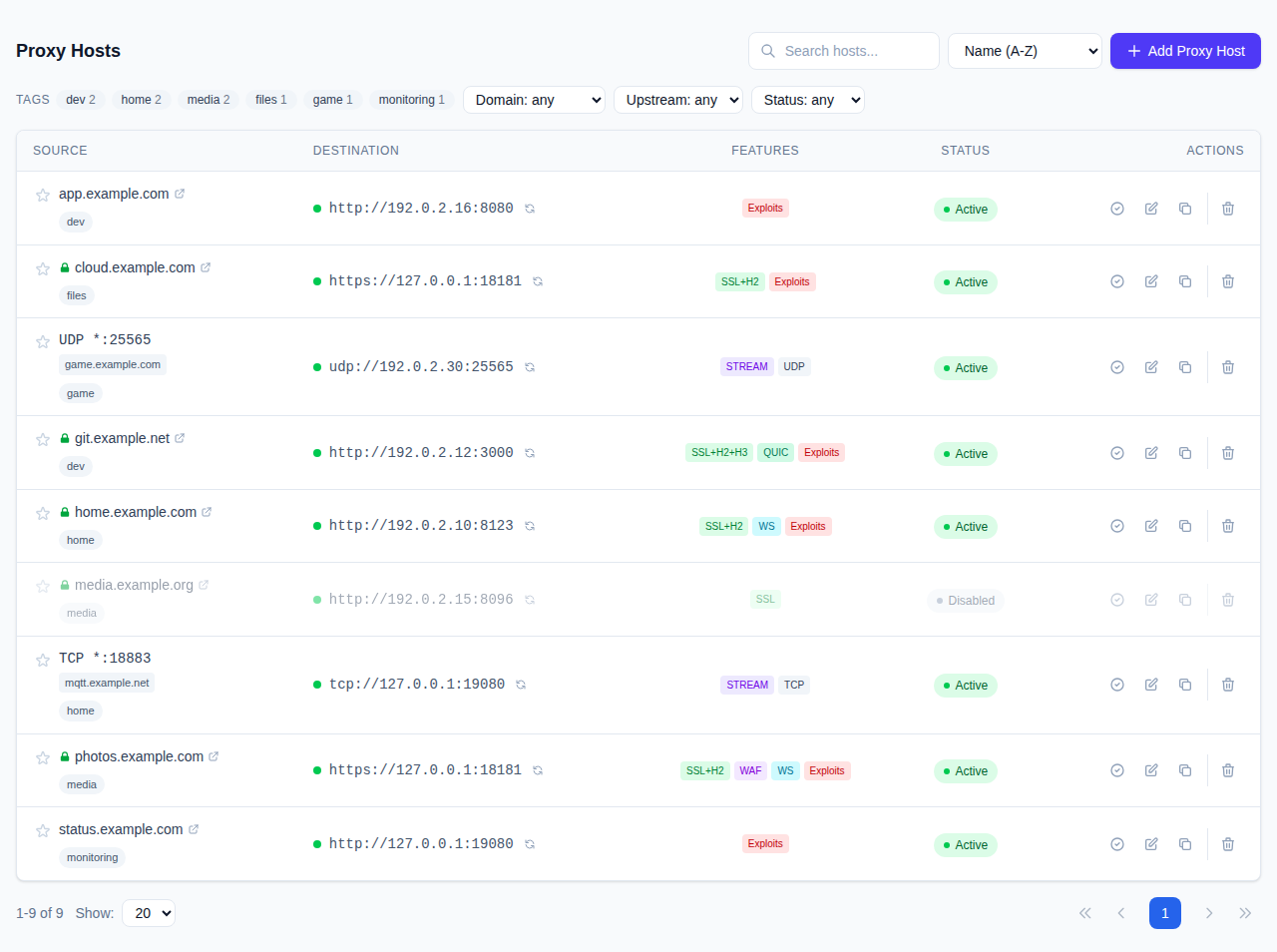
Proxy host list -
On the Basic tab, fill in:
- Proxy Mode: HTTP / HTTPS
- Domain Names:
app.example.com. To attach several domains to one host, click Add Domain. - Forward Scheme:
http://if the service answers plain HTTP,https://if it only answers HTTPS - Forward Host:
192.0.2.10. For a Docker container on the same server, pick it with the Docker button. - Forward Port:
8080 - Tags (optional): labels for grouping the host list
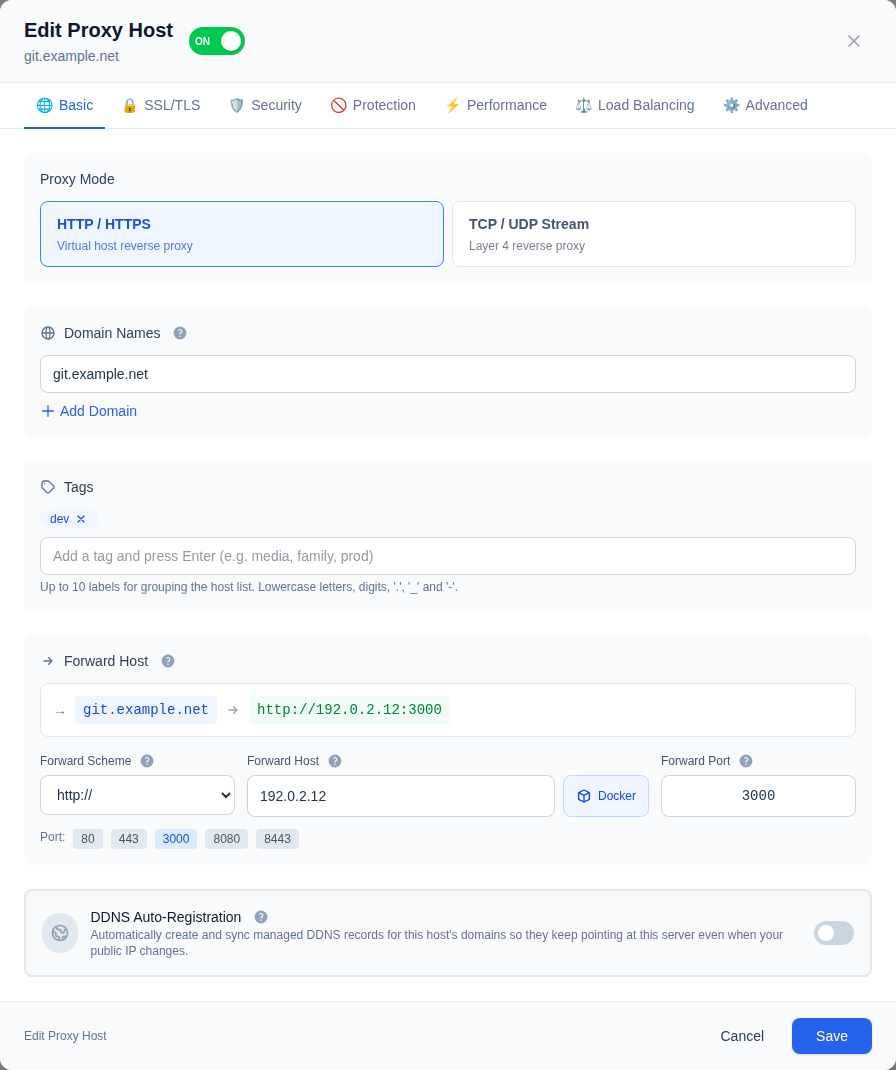
Basic tab: domain names, forward scheme, forward host, forward port -
Click Next through the remaining tabs. Their defaults are fine for a first host. When you create a new host, the Create button appears on the last tab, Advanced.
-
Click Create. NPG writes the configuration, checks it with
nginx -tand applies it.
Check that it works
- In the Proxy Hosts list, the new host's status is
Active. The dot next to the domain is the backend status: green isBackend online, red isBackend offline. - Open
http://app.example.comin a browser. - The row's Test Configuration button sends a request through the host and shows the status code, response time and the security features in effect.
- The request you just made appears in Logs → Access Logs. See Reading logs and block reasons.
Common problems
- You see the NPG welcome page. The request's domain matched no proxy host. Check that Domain Names is spelled exactly like the address you opened. What happens to requests for unknown domains or the bare IP is set under Settings → Global Settings → Advanced, Direct IP Access Handling.
- 502 Bad Gateway. NPG could not connect to the backend. Check the forward host and port, and that the service is running. Connecting directly from the server, for example
curl http://192.0.2.10:8080, narrows it down. - Endless redirects. The backend redirects HTTP requests to HTTPS itself. Change Forward Scheme to
https://. NPG does not verify backend certificates, so a backend with a self-signed certificate also works. - The host shows
Errorin the list. Thenginx -tcheck failed, so this host's change was not applied. Hover over the status to see the error; opening the host shows a link to the tab that caused it. - It works inside your network but not from outside. Check the router's forwarding of ports 80 and 443, and the domain's DNS record.