
Guides
Large uploads, WebSockets and timeouts
By the end of this page services such as a NAS or a cloud drive can upload and download large files, WebSocket-based services stay connected, and long-running requests are not cut off.
Before you start
Which setting to change depends on the symptom.
| Symptom | Cause | Setting |
|---|---|---|
413 Request Entity Too Large during an upload | Request body size limit | Client Max Body Size |
| A large upload fails near the end, or the server's disk or memory fills up | NPG receives the whole request before passing it on | Proxy Request Buffering |
| A large download, stream or SSE starts late or stalls | NPG receives the response before passing it on | Proxy Buffering |
504 Gateway Timeout after about 60 seconds | Time spent waiting for the backend's response | Proxy Read Timeout |
| A live view never connects or keeps dropping | WebSocket upgrade is off | WebSocket Support |
These settings live in two places. Defaults for every host are under Settings → Global Settings; values for one host are on that host's Performance or Advanced tab. A value left empty on the host follows the global value.
1. Raise the upload size
- One host: on the host's Performance tab → Proxy Settings Override → Client Max Body Size, enter a value such as
10g.0means no limit. - Every host: Max Body Size on the HTTP tab of Settings → Global Settings. The default is
100m.
2. Stream very large uploads
By default NPG receives the whole upload body before passing it to the backend. For uploads of tens of gigabytes, change these on the host's Performance tab:
- Client Max Body Size:
0 - Proxy Request Buffering: Off (stream to upstream)
3. Large downloads and streaming
- With Proxy Buffering set to Off (stream directly), the backend's response is sent on as it arrives. This suits large file downloads, video streaming and SSE (Server-Sent Events).
- If buffering stays on and large files must go out, raise Proxy Max Temp File Size.
0uses no temp files, only memory buffers.
4. Raise the timeouts
NPG waits up to 60 seconds for the backend's response by default.
-
Every host: Proxy Read Timeout (s) on the Timeouts tab of Settings → Global Settings. Connecting and sending use Proxy Connect Timeout (s) and Proxy Send Timeout (s). Slow uploads can hit Client Body Timeout (s).
-
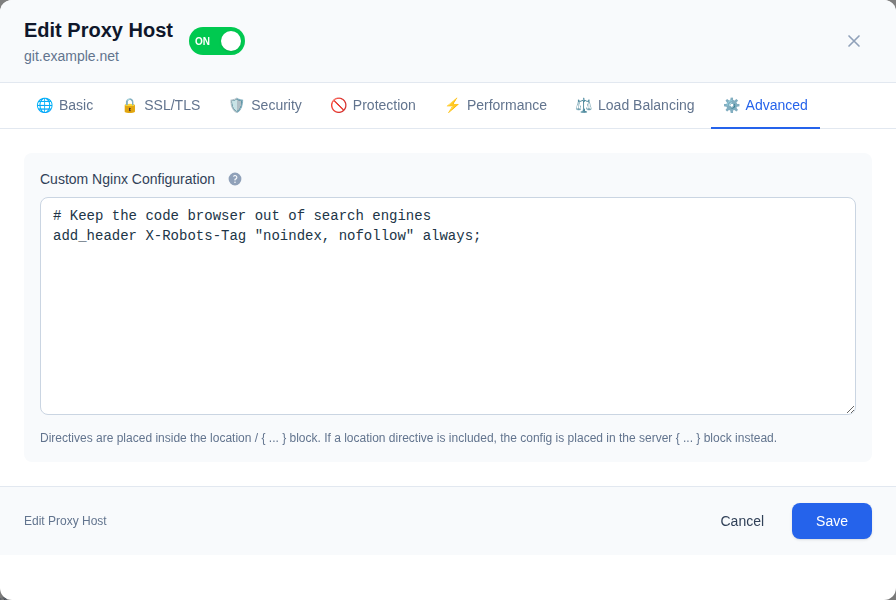
One host: the host form has no timeout fields, so put the directives in Custom Nginx Configuration on the Advanced tab. When a directive is there, NPG does not write its own value for it on that host.
proxy_read_timeout 600s;
proxy_send_timeout 600s;
5. Turn on WebSockets
Turn on WebSocket Support on the host's Performance tab. NPG then passes the WebSocket upgrade headers to the backend and raises the read and send timeouts to one day (86400 seconds) so connections can stay open.
Two things to know:
- When a saved change makes nginx reload, WebSocket connections held by the previous workers are closed after at most the Worker Shutdown Timeout (s) (240 seconds by default). Most web apps reconnect on their own. The value is on the Worker tab of Settings → Global Settings.
0waits until connections end, but old workers can then pile up and hold memory. - On a host that uses GeoIP or cloud provider blocking in challenge mode, requests that have not passed the challenge are sent to the challenge page, WebSocket requests included. Once a browser opens the page and passes the challenge, the WebSockets that page opens connect. For a host reached by apps rather than browsers, use block mode instead of the challenge, or add the addresses the app connects from to Priority Allow IPs.
Check that it works
- Uploads: upload a file of the size that failed before. Logs → Access Logs should show no 413 or 504.
- WebSockets: in the browser's developer tools, the WebSocket request in the Network tab answers
101 Switching Protocols. The access log also records it with status 101.
Common problems
- Still 413 after the change. If a proxy such as Cloudflare sits in front of NPG, it has its own upload size limit. Also check the backend application's own upload limit.
- 504 keeps happening. If Request Time in the access log details equals the timeout you set, the backend did not answer within it. Raise the timeout further or look at how long the backend takes.
- A WebSocket row has a very long request time. For a row with status 101, Request Time is how long the connection stayed open. That is normal.
- Saving fails after adding directives on the Advanced tab. A directive entered twice, or a syntax error, makes
nginx -tfail and the change is not applied. Opening the host shows the error.