
Guides
When the WAF blocks legitimate requests
By the end of this page you can find which rule made the WAF block a legitimate request, and switch that rule off only for the path or argument that needs it rather than the whole host.
Before you start
- Note when the blocked request happened and which address it went to. Reproducing the blocked page once makes it easy to find in the logs.
- Confirm the WAF is the cause. This page applies when the request's Block Reason in Logs → Access Logs is
WAF. For other reasons such asExploitorBot Filter, see Reading logs and block reasons.
How the WAF decides to block
NPG's WAF runs ModSecurity with the OWASP CRS rules. Most rules do not block on their own; they add to a score. When a request's total score passes the Anomaly Threshold, it is blocked. So one request is usually caught by several rules, and switching off only one of them can leave the next request blocked under another rule ID.
Each host has a WAF Mode:
- Blocking: requests over the threshold get a 403.
- Detection: nothing is blocked, only logged. WAF Auto-Ban does not act in detection mode either.
When you add a new service, running it in Detection for a few days shows which rules it trips, so you can clear the false positives before switching to Blocking.
1. Find the rule that blocked it
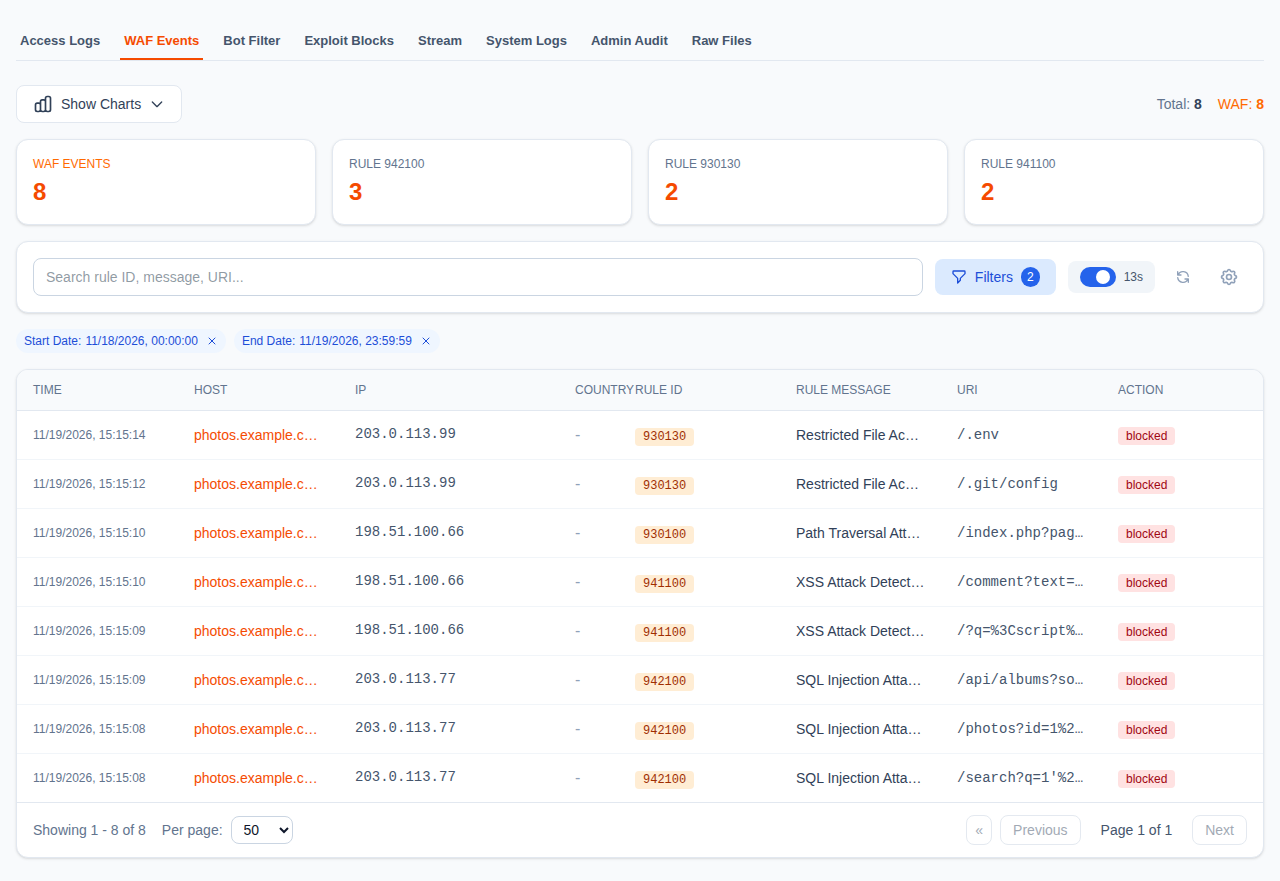
- Open Logs → WAF Events. Blocked requests show as
blocked; requests only recorded in detection mode show aslogged. - Click the blocked request to open Log Details. It shows the Rule ID, Rule Message, Attack Type and the request URI.
- In the details, the Rules that blocked this request list shows every rule that added to the score.
2. Exclude only as far as needed
-
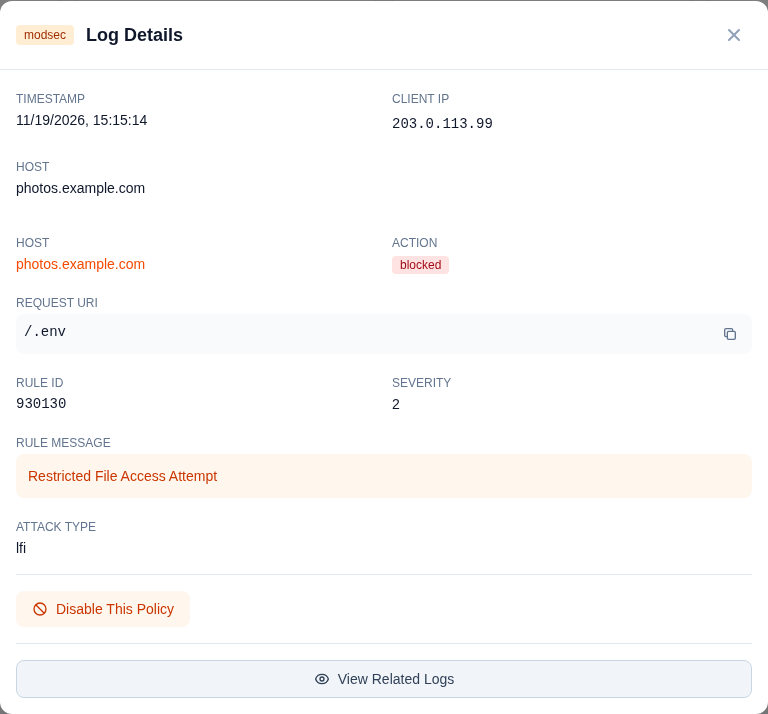
In the log details, click Disable This Policy.
-
Under Disable Scope, choose This Host Only. Global Disable (All Hosts) switches the rule off on every proxy host and cannot be narrowed to a path or argument.
-
Under Where to switch it off, choose the scope.
Scope Effect Only this argument The rule stays on but stops inspecting the named argument (for example content). The narrowest choice.Only this path The rule is off only for requests whose path starts with the value. The blocked request's path is filled in. The whole host The rule is off for every request to this host. The widest choice: whatever the rule was catching now gets through on other paths too. -
In Rules that blocked this request, select the rules to switch off together, add a note in Reason for disabling (optional), and click the disable button.
With /api in Only this path, the exclusion covers /api and everything under /api/..., but not another path such as /api-admin. The query string is not compared.
An exclusion takes a few seconds to apply after saving. A request made in that window can still be blocked.
3. Manage the exclusions
- Per-host exclusions are under WAF / Blocking → WAF Policy Settings → Per-Host Policies: click the host's Manage Policy. Exclusions narrowed to a path or argument appear as Partial exclusions, and Remove deletes one.
- Rules switched off globally are under WAF Policy Settings → Global Policies. Globally disabled only shows just the rules that are off.
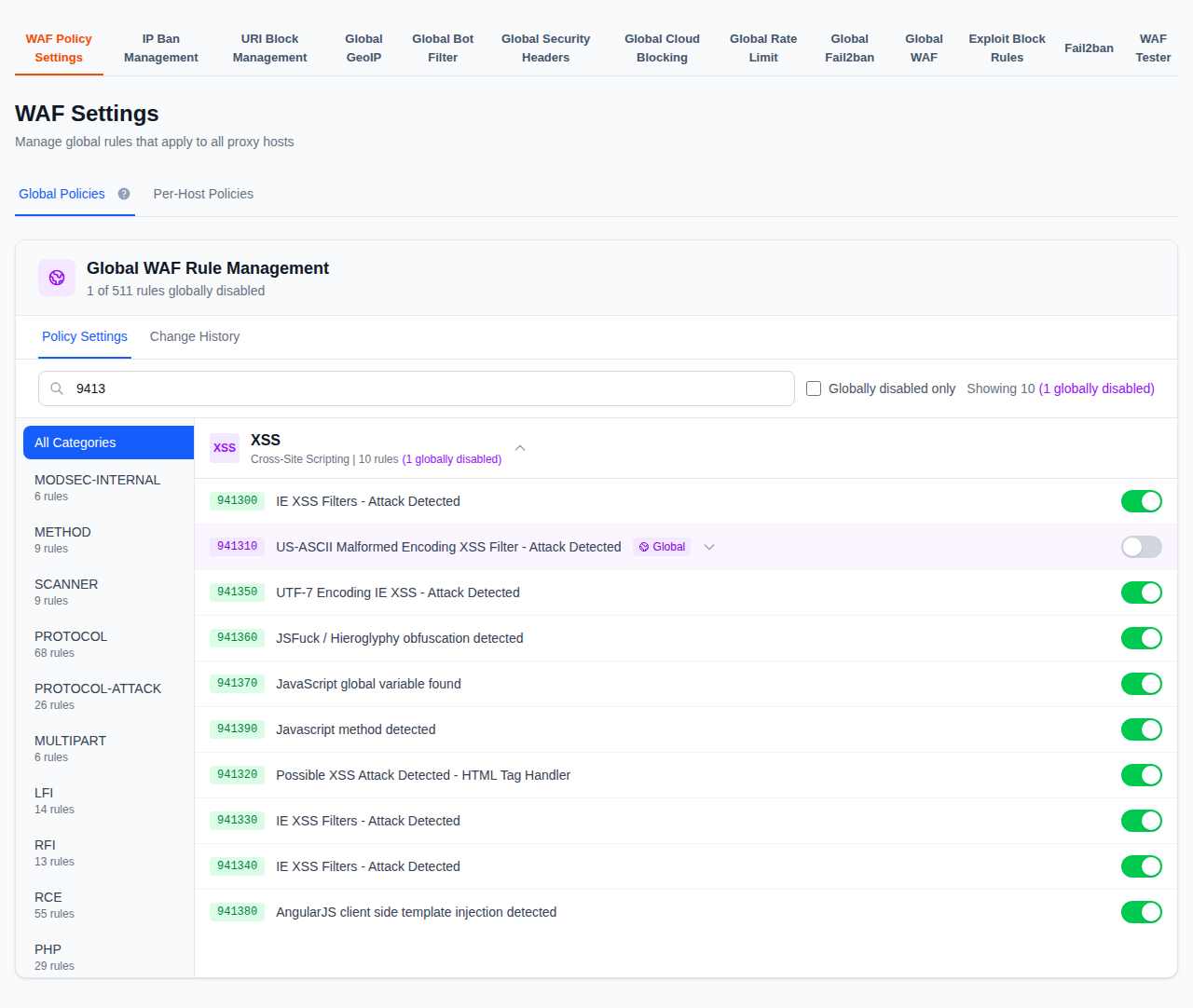
Rule 941310 (US-ASCII Malformed Encoding XSS Filter) is off by default. It mistook posts that mix HTML tags with Korean, Japanese, Chinese and similar text for attacks, and the attack it stops only ever worked on old Internet Explorer. You can turn it back on in the Global Policies list, and that choice is kept across upgrades.
Other adjustments
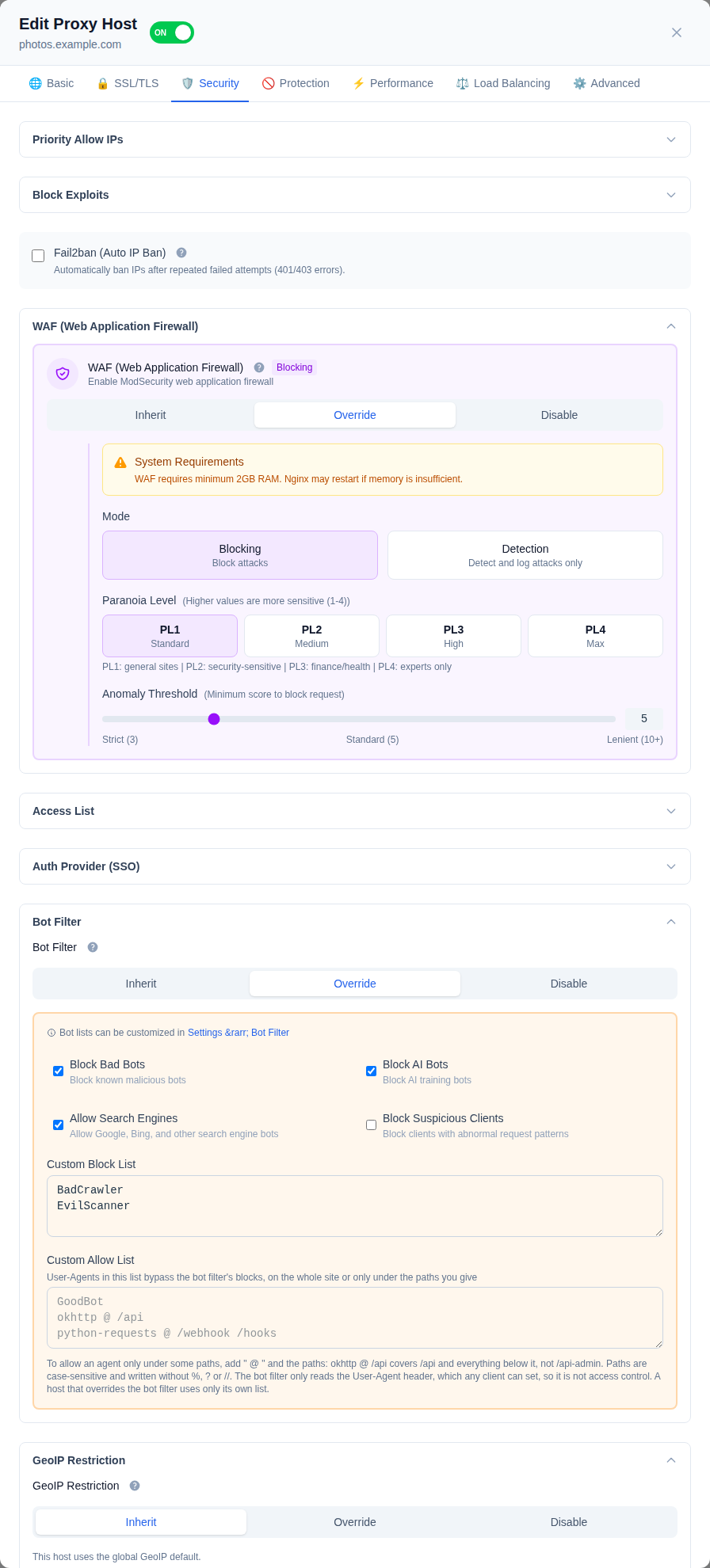
- Paranoia Level (1–4) and Anomaly Threshold are set in the WAF settings on the host's Security tab, or in WAF / Blocking → Global WAF. A higher paranoia level enables more rules and brings more false positives.
- To let requests from specific addresses skip the WAF, see Trusted IPs, exceptions and precedence. Excluding a rule narrowly is safer than trusting an address wholesale.
- Some requests are answered by another feature first. A request redirected to a country challenge or to HTTPS, for example, gets that redirect as its response even when the WAF records a rule match for it.
Check that it works
- Send the blocked request again. It should get a normal response.
- In Logs → Access Logs, the same request's Block Reason is empty.
- In WAF / Blocking → WAF Tester, pick the host and run Test All Patterns to confirm common attack patterns are still blocked after your exclusions.
Common problems
- Excluded, but blocked again under another rule ID. Several rules' scores added up. Select the remaining rules too in Rules that blocked this request.
- It says "already disabled" but requests are still blocked. They arrived before the exclusion, or on a different path. Check the path of the newly blocked request.
- The block reason is
Exploit. That is the nginx-level Block Exploits rules, not the WAF. Open the request in Logs → Exploit Blocks to see the rule name, then use Add Exception for This Rule with a host and a URI Pattern (optional). The rule list is under WAF / Blocking → Exploit Block Rules. - Posting is blocked and the author's IP gets banned. With WAF Auto-Ban on, WAF events in blocking mode accumulate and can ban the IP. Exclude the rule, then lift the ban in WAF / Blocking → IP Ban Management.